Electric VLSI Design System
at
CMOSedu.com
Quick
install:
ensure Java is installed (go to java.com)
and save electric-9.07.jar
to your computer (e.g., the Desktop).
- Double
clicking on this saved jar file starts Electric in Windows using 64
MB of memory (see here
for how
to increase memory allocation, very important if doing simulations or
large
designs).
- In
Linux/Unix open a terminal window, navigate to where you saved the jar
file,
and enter: java -Xmx512m -jar
electric-9.07.jar & to start Electric with 512 MB of
memory.
- For
the Mac, double clicking on the saved jar file should start Electric.
If not,
use the Linux/Unix command-line command seen above in a xterm.
- Examples
for the C5
process (SPICE models C5_models.txt) for
fabrication through MOSIS
are found in:
- CMOScells.zip
- bare_pads_TinyChip_C5.zip
- opamp.zip
- ece5410.zip
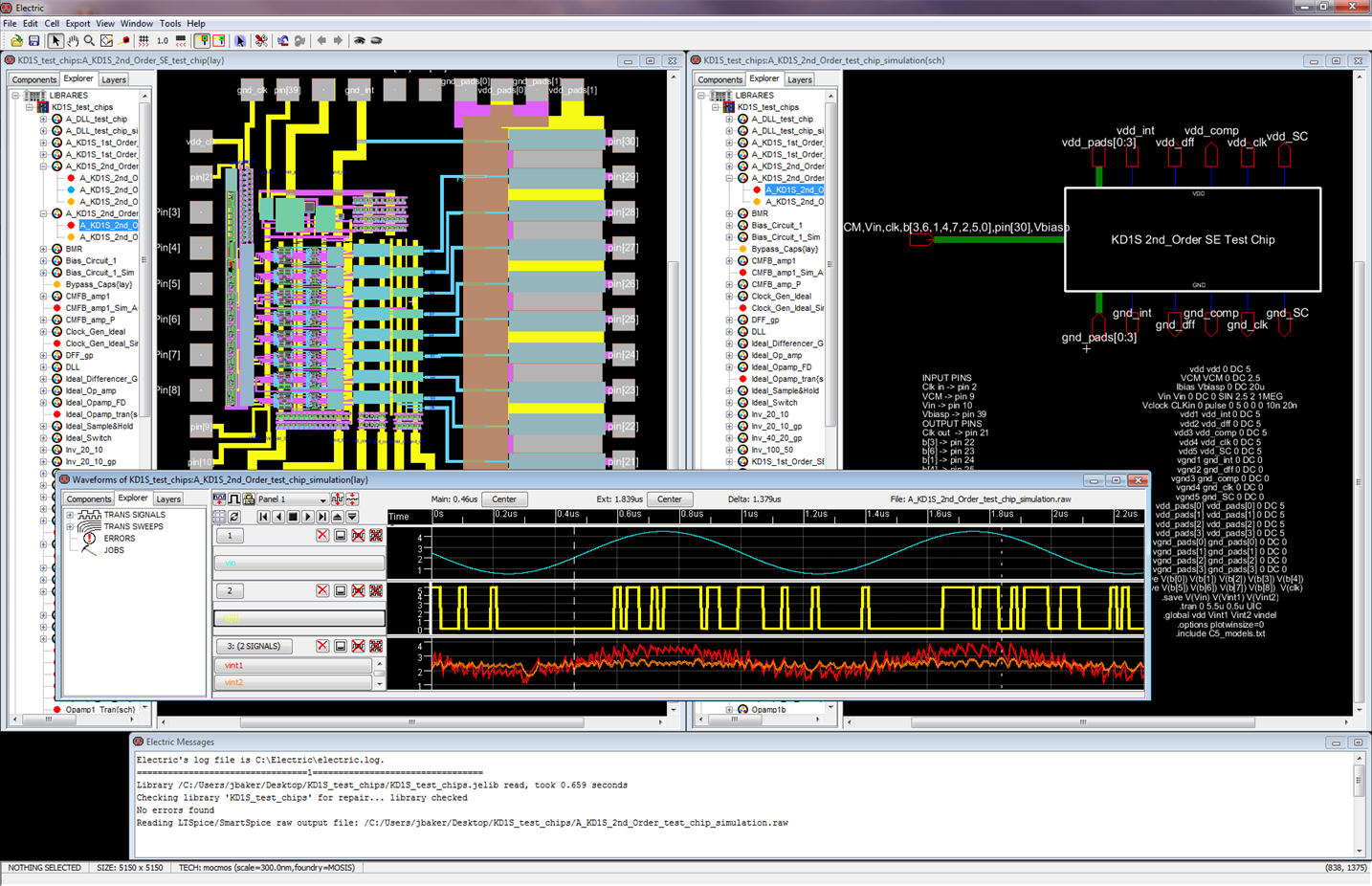
- KD1S_test_chips.zip
- DLL_clock_generator.zip
- MOSIS_SUBM_PADS_C5.zip (Both analog and digital: 1] pads with ESD protection, 2] “Tiny-Chip” padframes [1.5 mm x 1.5 mm], and 3] test chips.)
- Digital_IO_Pads_MOSIS_SUBM.pptx short powerpoint on the operation of the digital pads used in the digital test chip
- Analog_Test_Chip.pptx powerpoint covering the testing of the analog test chip
- Analog_Test_Chip_Espanol.pptx versión español del powerpoint que cubre las pruebas del chip analógico
- Unzip
then open these libraries after you start Electric (File -> Open
Library)
and simulate using LTspice
- Download the books’ Electric
examples in Electric_CMOSedu.zip
with extras!
- Electric
VLSI tutorials
from
CMOSedu.com are found here
- Detailed
information
on installing and using Electric with add-ons (e.g., SPICE) is found here.
Dr.
Steven M. Rubin led the development of Electric in the former VLSI
Research Group at Oracle,
Inc.
The
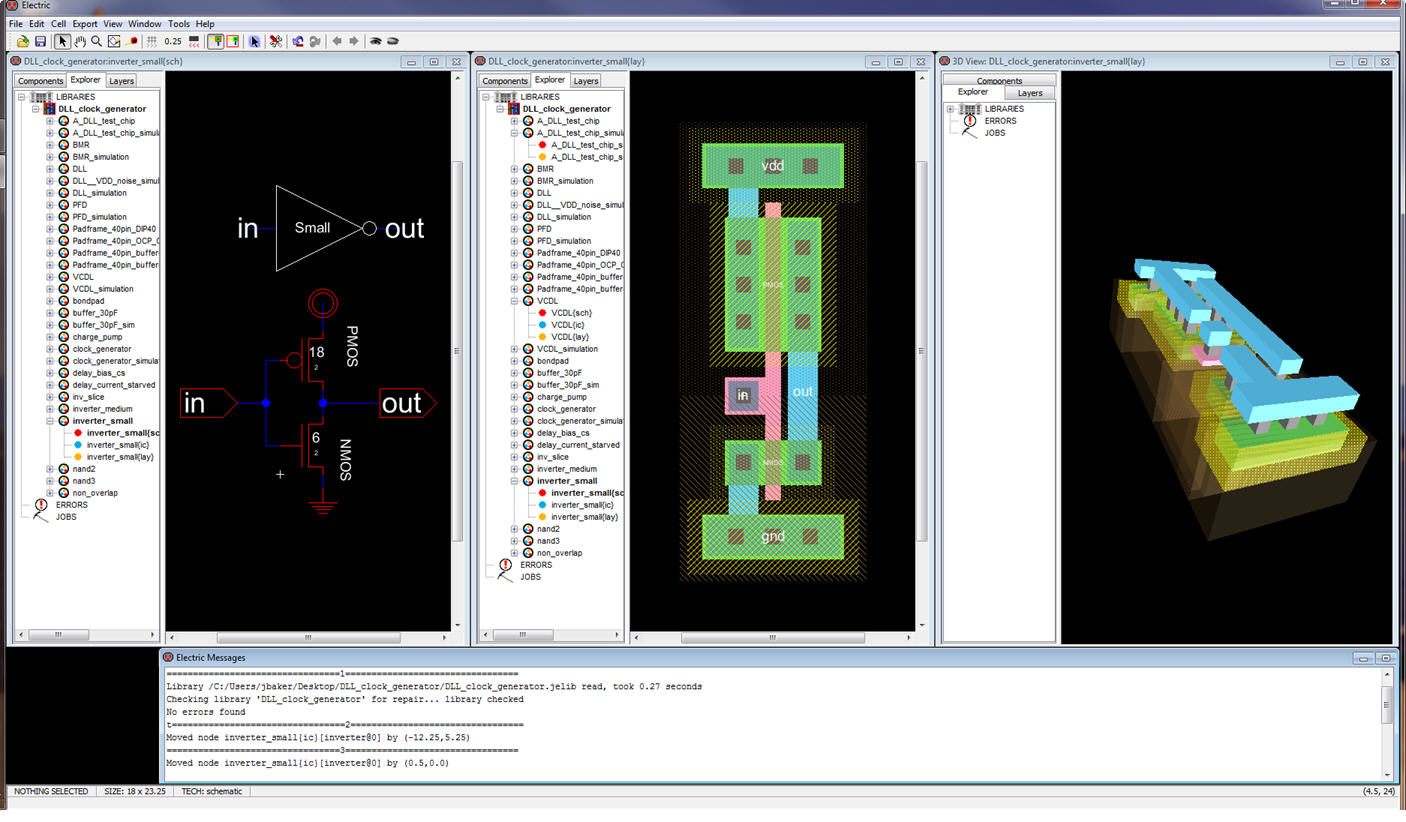
Electric
VLSI Design System – free and powerful CAD system for chip
design
(schematics, layout, DRC, LVS, ERC, etc.) that runs on any platform
(Unix,
Linux, Mac, Windows).
- The
Google
group for Electric is located at https://groups.google.com/group/electricvlsi.
Also see the Electric
Users around the World (map)
- Electric’s
history at Wikipedia.org.
- An
online
user’s manual with tutorial is found here
and examples
are found here.
- Tutorials
and
videos illustrating the use of Electric are seen here.
- Labs using Electric are found in:
- EE 421L taught at UNLV
- f13
- 8-bit MIPS microprocessor (from Prof. Gupta at Villanova U.)
- MIPS Senior Design
Project - report
and jelib
(right click to "Save link as")
- Helpful
information from Kazzz
is found in: Eclipse-GNU-Electric.ppt
and EditTechnology-GNU-Electric.ppt
- Installers
for the Java 3D viewer are found here.
- Untested
analog and
digital pads for TSMC’s CL018 (180 nm, lambda = 90 nm) CMOS process
using the
MOSIS DEEP rules are found in MOSIS_DEEP_PADS_CL018.zip
Return to:
CMOS
Circuit Design, Layout, and Simulation
CMOS
Mixed-Signal Circuit Design